Chrome saves an image in whatever format the website serves it — and more sites now serve WebP. To get a JPG or PNG instead, you have three options: install a convert-on-save extension and pick the format from the right-click menu, open the saved .webp in Paint (Windows) or Preview (Mac) and export it, or run the file through a free converter like Squoosh. Each takes under a minute. One warning first: the best-known extension for this job, “Save image as Type”, was hijacked and turned into adware — Google removed it in March 2026. Don’t install old copies of it.
- Why do images save as WebP?
- Method 1: A convert-on-save extension (fastest)
- Method 2: Paint or Preview (no install)
- Method 3: An online converter (big batches)
- Which method should you use?
- Is “Save image as Type” safe?
- Common problems
Why do images save as WebP?
Websites serve WebP because the files are small — 25–34% smaller than a comparable JPEG, according to Google’s own tests. Smaller files mean faster pages, so most large sites converted their images. Chrome’s Save image as… dialog keeps whatever format the site sent. There is no Chrome setting to change that, and typing a .jpg extension in the save dialog only renames the file — the data inside is still WebP, and some apps will still refuse to open it.
Method 1: A convert-on-save extension (fastest)
An extension converts the image at the moment you save it, so there is no second step. We built a free one for exactly this job: Local Image Saver — Convert on Save. It saves any image — WebP, JPG, PNG, even SVG — as PNG, JPG, or WebP, and every conversion happens on your device — the image is never uploaded anywhere, and there are no ads, accounts, or analytics.
- Open Local Image Saver on the Chrome Web Store and click Add to Chrome.
- Right-click any image and choose Save image as… (PNG / JPG / WebP).
- Pick PNG or JPG. The converted file lands in your Downloads folder.
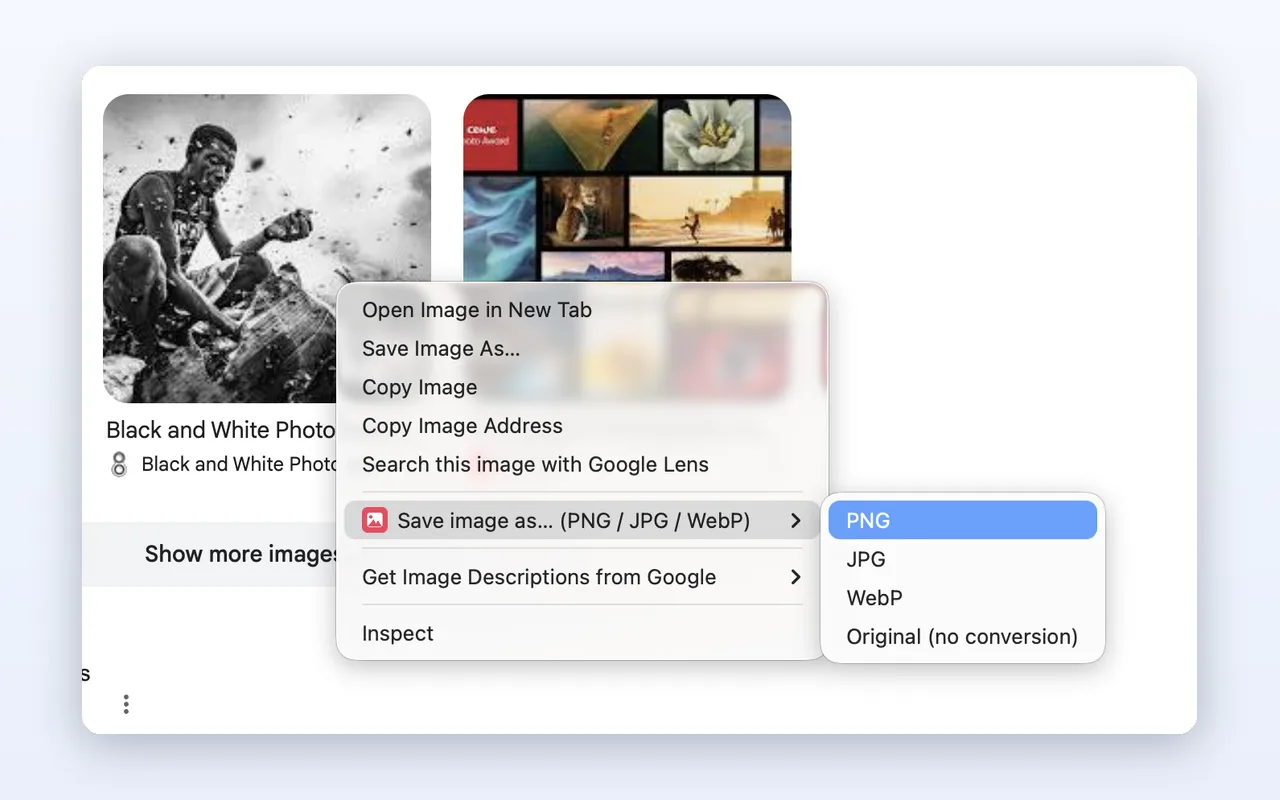
Pick Original when you want the untouched file. It works in every direction, too — a heavy PNG saves as a compact WebP just as easily. The settings page lets you set JPG/WebP quality and a filename pattern. On your first save it asks for site access — that permission is what lets it read images that sit on a different server than the page (most do), and you can decline or remove it anytime from the settings page.
Disclosure: Local Image Saver is built by us, the Awajis team. It’s free, with no paid tier. If something doesn’t work, the “Report a problem” form on its settings page reaches us directly.
Method 2: Paint or Preview (no install)
Already saved the .webp file? Convert it with an app your computer ships with.
Windows (Paint):
- Right-click the .webp file → Open with → Paint.
- Click File → Save as → JPEG picture or PNG picture.
- Pick a folder and click Save.
Mac (Preview):
- Double-click the .webp file — it opens in Preview.
- Click File → Export…
- Choose JPEG or PNG in the Format menu and click Save. If the format you want isn’t listed, hold Option while clicking the Format menu to reveal the full list.
Fine for the occasional file. It gets old fast if you save images every day — that’s what the extension is for.
Method 3: An online converter (big batches)
For a pile of files, or when you also want to resize or compress, use Squoosh — a free tool from the Chrome team. It runs in the browser and processes images on your device, so your files stay private. Drag a file in, pick MozJPEG (for JPG) or OxiPNG (for PNG) in the bottom-right panel, and click the download button.
Sites like CloudConvert handle bigger batches in one go, but they upload your files to their servers — skip them for anything private.
Which method should you use?
| Situation | Best method |
|---|---|
| You save images regularly | The extension — one right-click, done |
| One file, once in a while | Paint (Windows) or Preview (Mac) |
| Many files, or you want resizing too | Squoosh |
Is “Save image as Type” safe?
No — do not install it. It was the most popular extension for this job, with over 1 million users, until its new owners turned it into adware. A group called Karma acquired it from the original developer in November 2025 and added hidden code that hijacked shopping traffic on sites like Amazon to steal affiliate commissions. Google removed it from the Chrome Web Store in March 2026 (gHacks, 9to5Google). If it’s still in your browser, remove it now: chrome://extensions → Remove.
Extensions change owners quietly, so check who runs one before installing it — the Facebook Friends Mapper extension is another one that had to be pulled. Prefer tools that state exactly what they do with your data.
Common problems
- Transparent image gets a black or white background as JPG. JPG doesn’t support transparency, so the transparent area must be filled. Save as PNG instead to keep it. (Local Image Saver fills with white rather than black.)
- Animated WebP or GIF turns into a still image. Converting keeps only the first frame. Use the Original option to keep the animation.
- The image won’t save from a protected site. Some sites block direct image downloads. The extension retries through the page itself, which usually works; failing that, an old-fashioned screenshot does the job.
- You renamed .webp to .jpg and it still won’t open. Renaming doesn’t convert. Run the file through any method above.
Install the extension once and the WebP problem disappears — or keep Paint on standby for the occasional file.