Chrome doesn’t ship with a notepad. If you want to jot something down without switching apps, you need an extension — and the right pick depends on where you want your notes to live: in the side panel, in every new tab, or stuck to the page itself. Evergreen Notepad is the best choice for most people because it autosaves every keystroke, keeps history snapshots of each note, and never sends anything off your device. Sticky Notes 3.8 is the best way to pin notes to webpages, and the plain Notepad extension is the simplest way to sync one scratchpad between computers.
One disclosure before the list: our team built Evergreen Notepad. Every number below — user counts, ratings, permissions — comes from each extension’s Chrome Web Store listing as of July 2026, so you can check our ranking against the same facts we used.
| Extension | Best for | Where notes live | Users | Rating |
|---|---|---|---|---|
| Evergreen Notepad | Most people; never losing a note | On your device only | New listing | 4.9 |
| Sticky Notes 3.8 | Pinning notes to webpages | In Chrome, backup to your Google Drive | 100,000 | 4.7 |
| Notepad | Syncing between computers | Your Chrome account | 100,000 | 4.0 |
| Papier | Writing in every new tab | In your browser | 30,000 | 3.7 |
| Note Board | A visual board of many notes | In Chrome, optional account | 100,000 | 4.3 |
| Google Keep | People already using Keep | Your Google account | 6,000,000 | 3.6 |
| Advanced Notepad | Formatted notes in a popup | In Chrome, remote backup | 10,000 | 3.4 |
How we ranked them
Four things decided the order. Where notes are stored — on your device or in your own account beats a third-party server. Whether the extension autosaves and can recover a note you overwrote or deleted. What permissions it asks for — a notepad doesn’t need access to the sites you visit unless it draws notes onto pages. And the Chrome Web Store rating and user count as of July 2026. All seven are free to install.
1. Evergreen Notepad — best for most people
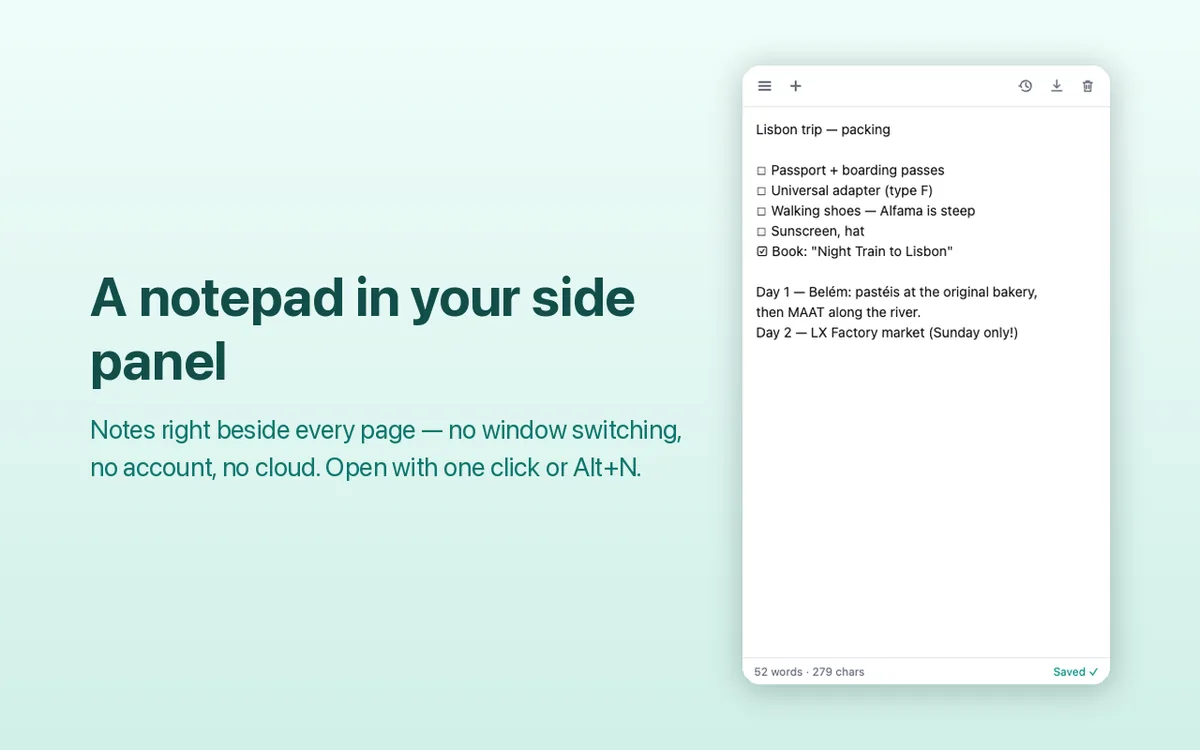
Evergreen Notepad puts a notepad in Chrome’s side panel, so your notes sit next to the page you’re reading instead of in another tab. Press Alt+N or click the toolbar icon and start typing. There is no save button because it saves every keystroke, and again the moment you switch tabs or close the panel.
It’s built around not losing work. Earlier versions of each note are kept as automatic snapshots you can restore, deleted notes stay in a trash for 30 days, and you can export all notes as one JSON backup file or a single note as Markdown. Notes never leave your device: the extension has no permission to read any website and makes no network requests, and the whole download is 28 KB. You also get multiple notes with automatic titles, search, word and character counts, and a dark mode that follows Chrome’s theme.
The listing is new, so its 4.9 rating comes from a small number of reviews. And again: we built it. Open the listing, read the permissions, and judge it on those.
Install: Evergreen Notepad — Side Panel Notes (free, Chrome 114 or newer)
2. Sticky Notes 3.8 — best for pinning notes to a webpage
Sticky Notes 3.8 attaches a note to the page you’re on, and the note is waiting there when you come back — useful for “call this number tomorrow” on a booking page or a reminder on a form you half-finished. It works offline and backs up to your own Google Drive instead of a third-party server.
With 100,000 users and a 4.7 rating, it’s the best-reviewed notepad extension on this list. The tradeoff is built into how sticky notes work: to draw notes onto webpages, it needs permission to run on the sites you visit. That’s normal for this category, but it’s more access than a side-panel or new-tab notepad requires.
Install: Sticky Notes 3.8 – Super Quick & Personal (free)
3. Notepad — best for syncing between computers
Notepad is a plain text box that opens from the toolbar and syncs through your Chrome account, so the same text shows up on your work and home computers without any sign-up beyond being logged into Chrome. It has 100,000 users and a 4.0 rating.
That plainness is the point. There are no folders, formatting, or menus to learn. If you need several separate notes or any formatting, pick Evergreen Notepad or Advanced Notepad instead; if you want one synced scratchpad that follows you between machines, this is the simplest option here.
Install: Notepad (free)
4. Papier — best new-tab notepad
Papier replaces Chrome’s new-tab page with a notepad: open a tab, start typing. Nothing to click, no account to create, and notes are stored in your browser. It handles the basics — bold, italic, headings, lists, and checkboxes — which is more formatting than most extensions on this list.
It has 30,000 users and a 3.7 rating. Two tradeoffs: you give up your new-tab page (shortcuts, most-visited tiles), and everything lives in one running document rather than separate notes. If you think in one continuous scratchpad, that’s a feature.
Install: Papier (free)
5. Note Board — best for a visual board of notes
Note Board combines on-page sticky notes with a board view: notes you leave on webpages also collect on a pinboard-style canvas where you can drag them around, which suits people juggling many small notes across research tabs. It has 100,000 users and a 4.3 rating.
It’s heavier than a simple notepad, and like Sticky Notes 3.8 it needs permission to run on the pages you annotate. Try it if a flat list of notes stops working for you.
Install: Note Board – Sticky Notes App (free)
6. Google Keep extension — best if you already use Keep
The official Google Keep extension saves the current page, selected text, or an image to Keep in one click, and lets you add a note to the save. Because it’s Keep, everything syncs to your phone and every browser you’re signed into. It’s the most-installed option here at 6,000,000 users, with a 3.6 rating.
Know what it is, though: a clipper, not a typing pad. It’s built for capturing pages into your Keep account, it needs a Google account, and your notes live on Google’s servers. If you’re not already a Keep user, a local notepad above is faster for quick jotting.
Install: Google Keep Chrome Extension (free)
7. Advanced Notepad — formatted notes in a popup
Advanced Notepad is a popup notepad with text formatting, multiple notes, autosave, and a remote backup option — a feature set none of the simpler popups match. It has 10,000 users and a 3.4 rating, the lowest on this list, which is why it sits at number seven despite the features.
It earns its spot as the option to try when you want formatting and multiple notes in a toolbar popup specifically. For the same features with better data safety, Evergreen Notepad in the side panel is the stronger pick.
Install: Advanced Notepad (free)
When a Chrome extension is the wrong notepad
Skip all seven if your notes need to reach your phone reliably — use the Keep app, Apple Notes, or any notes app with a real mobile client. Use Google Docs for anything longer than a page; extension notepads are scratchpads, not document editors. And remember that removing an extension deletes any notes it stored locally in Chrome, so export a backup before you uninstall one you’ve been using.
Does Chrome have a built-in notepad?
No. Chrome’s side panel ships with bookmarks, history, and a reading list, but no place to type a note. That’s why every option on this list is an extension — the notepad has to be added.
Are notepad extensions safe?
Check the permissions on the listing before installing. A plain notepad needs storage and, at most, the side panel — it has no reason to read the sites you visit. Sticky-note extensions are the exception: drawing notes onto a webpage genuinely requires access to that page. Treat “read and change all your data on all websites” as a red flag on anything that doesn’t put notes on pages, and prefer extensions that state where your notes are stored.
Will I lose my notes if I remove the extension?
For extensions that store notes locally — Evergreen Notepad, Papier, and similar — yes: uninstalling deletes the extension’s stored data. Export a backup first. Notes in a synced account, like Google Keep or the syncing Notepad, survive because they live in your account, not the extension.
If you also wrangle images while you research, our guide to saving WebP images as JPG or PNG in Chrome fixes the browser’s other daily annoyance.